Creating a Containerized Application on Z: A Step-by-Step Guide
In this edition of 'The IBM Z Experience,' Joe Gulla extends a banking application consisting of CICS transactions and data in Db2 databases

Did you ever wonder what it looks like to develop and deploy a containerized application? I did. That’s why I wrote this article.
It took some research on my part, but what follows is a step-by-step list of activities that a programmer carries out to create a containerized application in an IBM Z environment running z/OS and Enterprise Linux from Red Hat.
About the Application
The new application in this exercise will utilize the existing function of a banking application and extend it. The old banking application in question is running on Linux on the IBM Z and consisting of CICS transactions and data in IBM Db2 databases. Extending it will make the data available on a cellphone or tablet in a new and interesting way without duplicating the function of the z/OS application as it currently operates.
To carry out this exercise I will explain a modern containerized application, built with Linux on IBM Z, that securely calls the CICS application via APIs, then presents the results to a mobile app. Below are the steps that a programmer typically follows to build a containerized application on IBM Z involving both z/OS and Red Hat Enterprise Linux.
It Starts With Design Work
The programmer starts by examining the existing banking application. Let’s call this the discovery step. The programmer (or application designer) identifies the CICS transactions that contain the needed banking logic, identifies the Db2 tables involved and determines what functions should be “exposed.” Exposed is the language used when APIs are making information available like “get balance” or “display recent activity.” In this way, the developer is reusing the functions and data already part of the application running on z/OS.
Next, the designer or developer designs the API Contract. This means laying out the REST APIs that represent business capabilities—for example, get the balance of an account for a given ID. Figuring this out means defining input/output JSON formats, identifying security requirements and planning for error handling.
Development Is Next
The next step is to expose z/OS functions as APIs. The tools commonly used on IBM Z to do this are z/OS Connect Enterprise Edition and CICS Web Services/REST APIs. At this step, the developer maps CICS transactions to REST APIs. To do this, they use z/OS Connect to transform JSON into COBOL data structures and route requests to CICS. In this way, they connect to Db2 indirectly through existing programs. At this stage, CICS transactions are now callable via secure REST endpoints.
Creating the Code Running on Linux
The next step is to build the Linux application code. This new application code functions as a business extension layer. In this example, the extension runs on Red Hat Enterprise Linux on IBM Z. The developer must choose a language from those supported by the bank. This might be Java Spring Boot, Node.js or Python (just examples) and the developer must write the application logic. The code will call z/OS APIs, combining or enhancing the data and formats responses for mobile use. It is significant that the innovative mobile device use is happening without changing the existing core systems.
Next, the developer needs to add mobile-device features. They typically transform raw banking data into user-friendly formats like charts, alerts or notifications. Another example might be a display that converts transaction history into categorized spending summaries.
Create the Dockerfile
The next step is to write the statements supporting an application using the following Dockerfile statements. Below is an example for an application written in Java. The Dockerfile is read by the Docker command and contains specific directives used to build the image:
FROM registry.access.redhat.com/ubi8/openjdk-17
COPY target/app.jar /app.jar
ENTRYPOINT ["java", "-jar", "/app.jar"]
These instructions tell Docker to start with Red Hat’s pre-made Linux environment that already has Java 17 ready to go and then drop the application code into it. Complete details of the statements are found in Table 1.
Table 1. Items in the Dockerfile file for Our Banking Application
| Item | Type | Explanation |
| FROM | Dockerfile instruction | Specifies the base image your container will build on. Every Dockerfile must start with (or include) a FROM. |
| registry.access.redhat.com | Container registry | This is the image registry (like Docker Hub, but for Red Hat images). It tells Docker where to pull the base image from. |
| ubi8 | Base OS image family | Stands for Universal Base Image 8, a Red Hat Enterprise Linux 8–based image. It’s a secure, minimal RHEL-compatible OS layer. |
| openjdk-17 | Runtime layer | Indicates this image includes Java OpenJDK 17 preinstalled, so you can run Java applications without installing Java yourself. |
| COPY | Dockerfile instruction | Copies files from your local machine, the build context, into the container image. |
| target/app.jar | Source path | The compiled Java application (JAR file), typically produced by Maven or Gradle in the target/ directory. |
| /app.jar | Destination path | The location inside the container where the JAR file is stored. |
| ENTRYPOINT | Dockerfile instruction | Defines the main command that runs when the container starts. This is usually your application. |
| “java” | Executable | The Java runtime used to launch your application. Included because of the base image. |
| “-jar” | Java option | Tells Java to run a JAR file as an application. |
| “/app.jar” | Application path | The JAR file that will be executed inside the container. |
Create the Container Image
Next is the Docker command. The standard syntax for the Docker command follows a structured, object-based pattern using the Bash shell:
docker [GLOBAL_OPTIONS] COMMAND SUBCOMMAND [ARGUMENTS...]
The next step is to build the container:
docker build -t bank-mobile-api .
After the build, the container will contain the application plus the runtime dependencies. The main difference between a Dockerfile and the Docker command is that a Dockerfile is a blueprint file used to build a Docker image, while a Docker command is a command line interface (CLI) instruction used to manage and run Docker resources. Additional details about the command are in the table below.
Table 2. Items in the Docker Command
| Part | Type | Explanation |
| docker | Command-line tool | The main program used to interact with Docker. |
| build | Subcommand | Tells Docker to create an image from a Dockerfile. |
| -t | Option (flag) | Stands for tag—used to assign a name to the image. |
| bank-mobile-api | Image name (tag) | The name you are giving your built image so you can reference it later. |
| . | Build context | Means “current directory”, where Docker looks, for the Dockerfile and files to include. |
It’s Time to Test
The next step is to run the container using the CLI:
Docker run -p 8080:8080 bank-mobile-api
The API being tested issues calls to the z/OS backend to ensure correct responses. The test is used to validate security, performance and data accuracy. Since the end-to-end security has not yet been provisioned (a later step in this flow), the test will have to be performed over again to assess that specific area. The same is true for the monitor-and-optimize step (another step later in this flow). The component breakdown is shown in Table 3.
Table 3. Elements of the Previous Docker Command
| Type | Explanation |
| docker run | This tells Docker to create and start a new container from a specific image. |
| -p | This is short for “publish” and maps a networking port on your computer to a port inside the container. |
| 8080:8080 | This links Host Port:Container Port. The first 8080 is the port on your actual computer. The second 8080 is the port the application is listening to inside the isolated container. |
| bank-mobile-api | This is the name of the Docker image (the blueprint) that Docker uses to build and run the container. |
Complete the Other Lifecycle Activities
After the testing is completed, the job is not yet completed. What is left to do?
Store Image in Container Registry
Use the Docker command to push the application to the enterprise registry to make the container available for deployment.
docker tag bank-mobile-api registry.company.com/banking/mobile
docker push registry.company.com/banking/mobile
Deploy to Kubernetes Using OpenShift on IBM Z
Use Red Hat OpenShift (Kubernetes) to create Deployment YAML statements defining Pods, Servicesand Scaling policies. Kubernetes functionality in OpenShift manages scaling, resilience and availability. Below are statements to deploy the application using OpenShift. The statements are a YAML Kubernetes Manifest for deployment, which means run and manage this containerized application.
apiVersion: apps/v1
kind: Deployment
metadata:
  name: mobile-api
spec:
   replicas:   3
   template:
     spec:
        containers:
        – name api
        image: registry/company/mobile
Table 4. Elements of the YAML Kubernetes Manifest
| YAML Element | Value | Explanation |
| apiVersion | apps/v1 | Specifies the Kubernetes API version being used and apps/v1 is the stable API for Deployments. |
| kind | Deployment | Defines the type of resource. A Deployment manages a set of identical Pods and ensures they are running as desired. |
| metadata | — | Contains identifying information about the object. |
| metadata.name | mobile-api | The name of the Deployment. This is how the resource is identified within the cluster. |
| spec | — | Defines the desired state of the Deployment. |
| spec.replicas | 3 | Specifies that three instances (Pods) of the application should be running at all times. |
| spec.template | — | Describes the Pod that will be created by the Deployment. |
| spec.template.spec | — | Defines the specification of the Pods themselves. |
| spec.template.spec.containers | — | Lists the containers that will run inside each Pod. |
| containers.name | api | The name of the container inside the Pod. |
| containers.image | registry/company/mobile | The container image to run. This is pulled from a container registry. |
Secure the End-to-End Flow
There are a number of components on different systems that need to work together in a secure manner. The flow is mobile device —-> API gateway —-> Linux container, accessing z/OS by way of an API exposing CICS/Db2 transactions and data.
Enabling TLS (HTTPS) involves configuring X.509 certificates and trust stores across all tiers, ensuring encrypted communication between the mobile client, API gateway (DataPower), containerized services and z/OS APIs. DataPower acts as the security gateway, terminating external TLS connections, validating OAuth/JWT tokens, enforcing API security policies defined in API Connect and securely forwarding requests to back-end services. Identity is propagated downstream and mapped to RACF credentials on z/OS, enabling fine-grained authorization for CICS transactions and Db2 data.
The table below shows the element of the application and the security procedure used to secure the transaction flow.
Table 5. Elements of a Secure Transaction
| Element of Application | Security Procedure Used |
| Mobile App | |
| Uses HTTPS | |
| Sends OAuth token | |
| DataPower Gateway | |
| Terminates TLS | |
| Validates OAuth/JWT | |
| Applies policies | |
| Re-encrypts traffic | |
| Linux Container | |
| Receives trusted request | |
| May validate token or rely on gateway | |
| Calls z/OS APIs via HTTPS | |
| z/OS Connect | |
| Accepts secured request | |
| Maps identity to RACF | |
| Invokes backend services | |
| CICS / Db2 | |
| Protected by RACF rules | |
| Executes transaction securely |
Integrate With Mobile Application
An important step is integration with the mobile system software. You do this through the API endpoints provided to mobile developers. It is necessary to ensure that latency is acceptable and data format matches the user needs. It is useful to utilize mobile features including push notifications and session handling conventions.
Monitor and Optimize
It is important to optimize what has been created for the application so it performs well. Ways to improve performance involve API caching, connection pooling and query performance. To do this, monitoring tools like Prometheus or Grafana examine Linux performance and IBM Omegamon and SMF for z/OS-side application performance. It is important to track response times, transaction volume and errors that arise.
Maintain Continuous Delivery (DevOps)
To maintain continuous delivery, the main activities that update the application updates need to be automated. This includes builds, tests and deployments. There are different tools that help make this happen using CI/CD pipelines. However, Red Hat OpenShift directly facilitates CI/CD pipelines through its own built-in, native features. While you can still use traditional external tools like Jenkins, OpenShift has evolved to provide modern, Kubernetes-native alternatives that reduce the need for third-party automation servers.
Lifecycle Recap
The flow of activities to build the application can be summarized in the figure below:
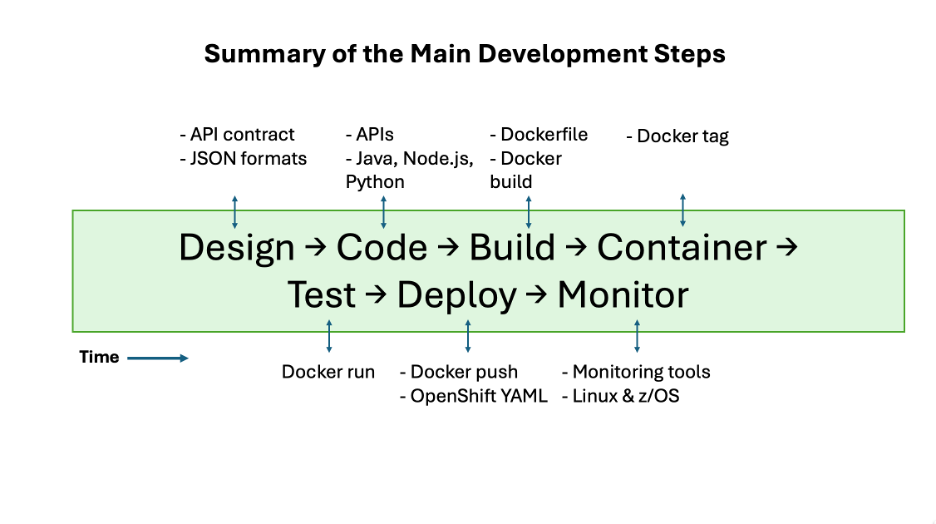
We take trusted banking functions running in CICS on z/OS, expose them as APIs and build a containerized app on Linux that calls those APIs and transforms the data into a mobile-friendly experience. The container is deployed on Kubernetes, so it scales easily, while the core banking logic safely remains unchanged.
Next Article in the Series
The next article of “The IBM Z Experience” is focused on z/OS modernization strategies—APIs, microservices and integration with cloud-native applications.