Copy, Sync, Cloud: Using Rclone for AIX Backups
Moving AIX backups to Google Drive and other cloud services has never been this straightforward, AIX expert Chris Gibson writes

Running the robust, enterprise-grade IBM AIX operating system in the cloud is proving very popular nowadays. From IBM’s own PowerVS cloud offering to running AIX on public cloud platforms like Google Cloud or Skytap, administrators now have flexible, scalable options for hosting their AIX workloads while taking advantage of cloud storage, backup and recovery solutions. Fortunately, for AIX administrators looking for simple and cost-effective file backup solutions in the cloud there are options available to them.
In this article I’ll explore how we can use the Rclone utility on AIX to perform file-level backups to cloud storage services, such as Google Drive.
Rclone for AIX
Rclone is a command line program to synchronise files and directories to and from various cloud services. It is a feature-rich alternative to cloud vendors’ web storage interfaces. Over 70 cloud storage products support Rclone including S3 object stores, business and consumer file storage services, as well as standard transfer protocols. The Rclone features that are available on AIX include:
- Full sync, copy, move, check operations
- 70+ cloud provider support (S3, Google Drive, Dropbox, Azure, Box, etc.)
- Bidirectional sync (bisync)
- Encryption and compression
- Serve files via HTTP, WebDAV, FTP, NFS
- Remote control daemon (rcd)
Note: On AIX, rclone mount using FUSE is not available, so it is not possible to mount a cloud remote as a local filesystem, and the disk usage tool ncdu is also unavailable. As an alternative, you can use rclone serve nfs on a host machine to export the remote via NFS, which can then be mounted on AIX, providing access to cloud files as a standard filesystem compatible with AIX tools.
To learn more about Rclone and its capabilities I encourage the reader to review the articles linked in the references section; for the uninitiated they provide an excellent introduction to the tool.
Configuring Rclone on AIX
The first step is to use DNF to install the rclone package on the AIX host. In the examples that follow we’ll configure the module for AIX 7.3 (using a PowerVS server instance in the IBM Cloud). To do this you’ll need to have the AIX Toolbox already configured on your AIX system. If you’re new to the toolbox and need help installing and configuring DNF on your AIX hosts I recommend you review the articles in the references for greater guidance on managing open source applications on AIX. And, if you’d also like some hands on experience with DNF on AIX, be sure to check out the available training on this topic.
To install the rclone package, run the command, dnf install rclone -y.
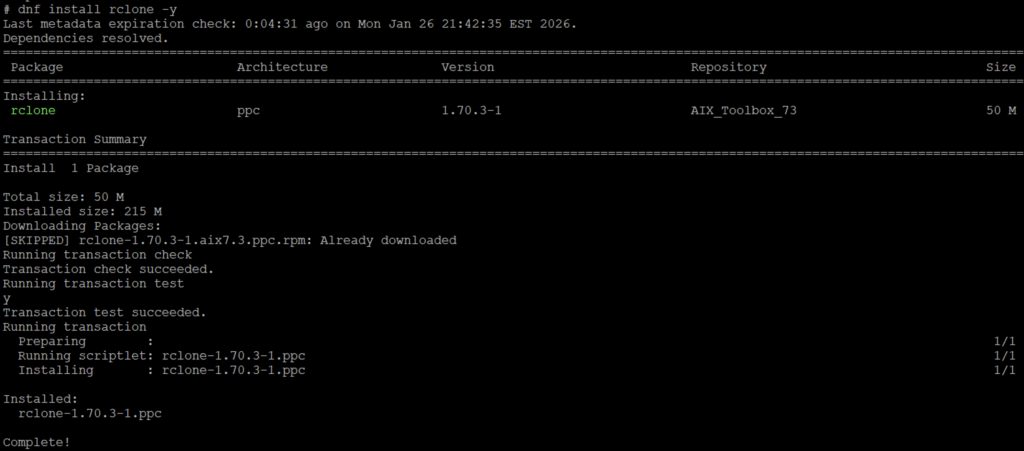
Check that the package is installed with rpm -q rclone. You should see a package named rclone-1.70.3-1.ppc installed on your system.
If using DNF is not an option for your environment you can probably get around this by downloading the RPM downloading the Rclone RPM package directly from the AIX Toolbox site, with wget –content-disposition https://tinyurl.com/aixrclone, and then installing it with rpm -Uvh rclone-1.70.3-1.aix7.3.ppc.rpm.
Configure Rclone for Google Drive
Next we’ll configure Rclone to use Google Drive for backups. There are already several excellent resources on the internet that explain how to configure Rclone for the first time. So rather than detailing each step here I’ll instead summarise the steps and highlight areas that AIX administrators need to pay attention to.
Start by following the steps outlined in the official Rclone documentation for configuring for Google Drive, https://rclone.org/drive/. Typically this will require you to run rclone config on a system that also has access to a web browser. For AIX administrators this could be a challenge given the lack of any supported modern web browsers for the platform. The Rclone documentation describes three methods for setting up Rclone up on a remote or headless machine with no browser available (discussed here https://rclone.org/remote_setup/). I’ve found that in most cases the method of “Configuring by copying the config file” is the easiest way forward. Using this alternative method requires the AIX administrator to use another workstation/desktop (such as MacOS, Linux or Windows) to perform the initial Rclone configuration. This means you start by running rclone config to create the configuration file on your desktop machine first. Then, once the initial configuration file for Rclone has been created, the AIX administrator can simply transfer (copy) the configuration details to the (headless) AIX host.
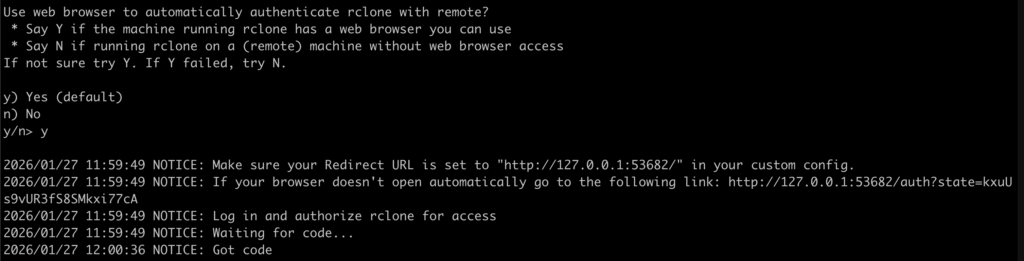
A MacOS system was used in this example to configure Rclone (the rclone package was already installed on the Mac using brew). From the workstation we ran rclone config and answered the questions (as outlined in the Rclone documentation). When prompted we entered 22 for Google Drive, as the storage type. When the question “Use web browser to automatically authenticate rclone with remote?” appeared we answered yes. This proceeded to automatically open our desktop web browser and directed us to the Google account selection page.
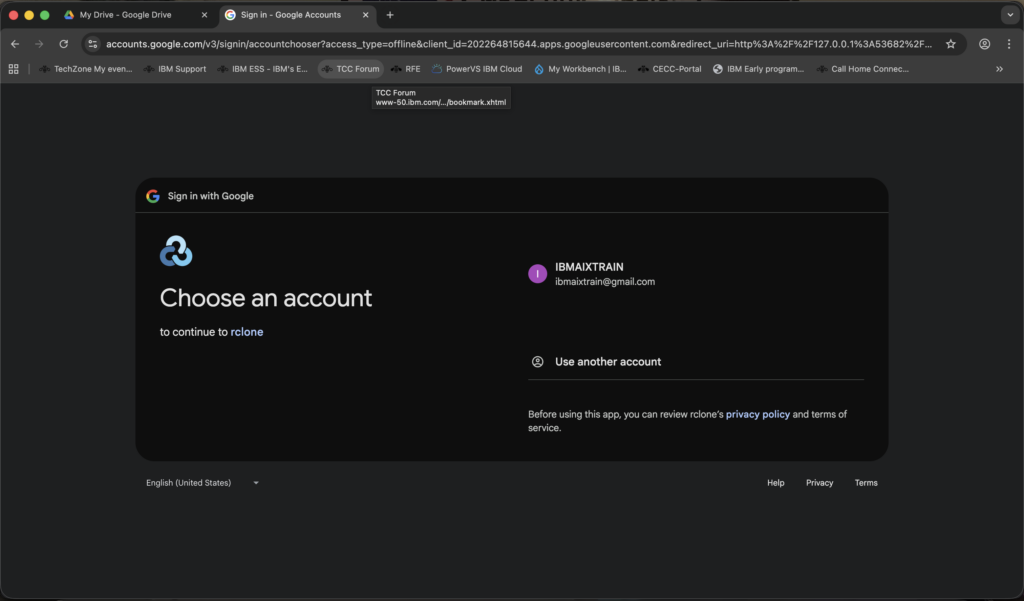
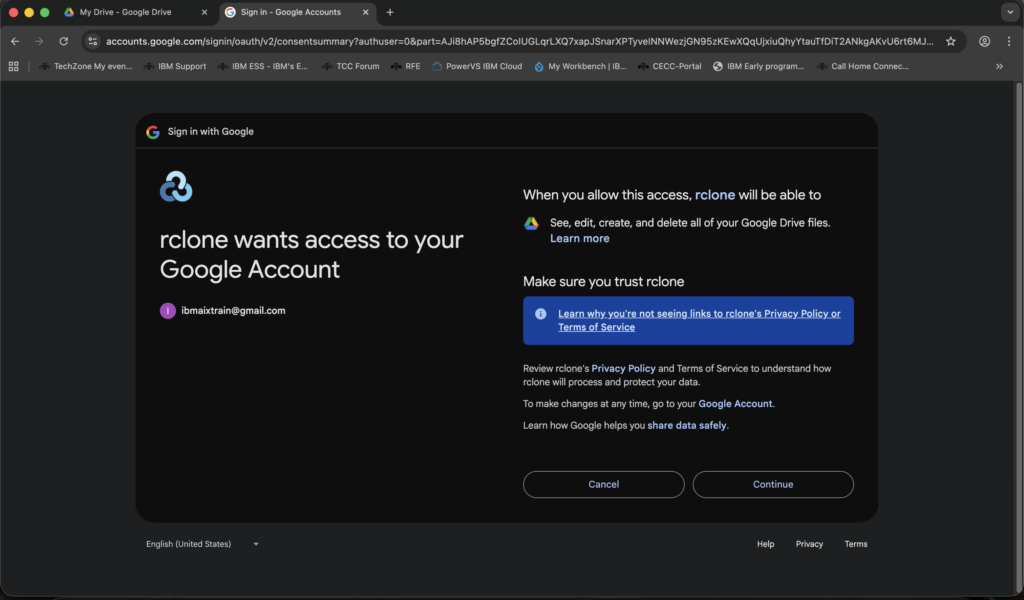
After selecting our Google account we agreed to allow Rclone to access our Google Drive.
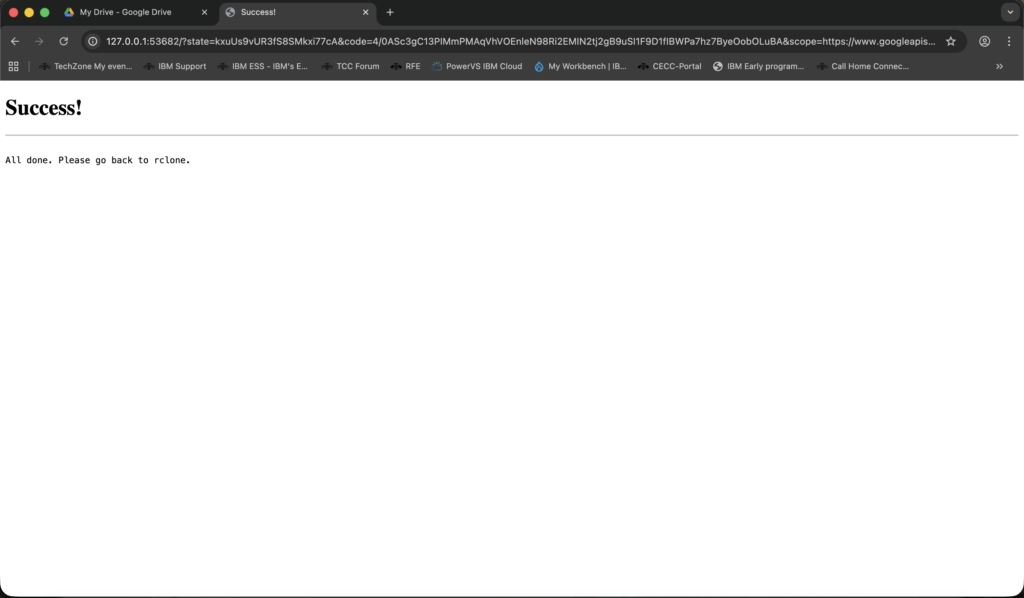
A message appeared in the web browser stating that the authentication was successful and to return to our rclone session.
The rclone config session confirmed the setup was successful, displaying the message “Got code”.
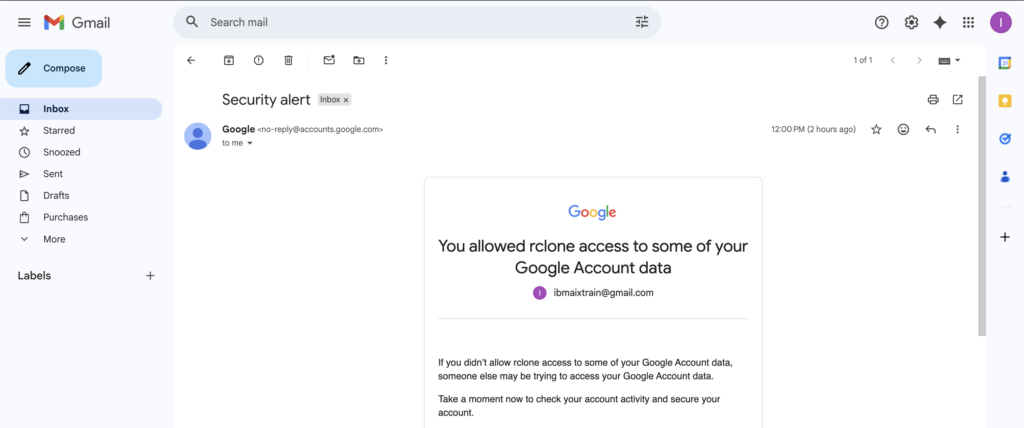
You’ll also receive an email (Gmail) alerting you to the fact that Rclone now has access to your Google Drive.
We were then able to display the Rclone configuration on the Mac desktop using rclone config show.
$ sw_vers
ProductName:         macOS
ProductVersion:      26.2
BuildVersion:        25C56

$ rclone config show
[google_drive]
type = drive
scope = drive
token = {"access_token":"ya29.a0AUMWg_JfXXwCjVcMfS0TbtKYJoJ1OFhXGm35xzMyPqHGJocL5L-speCOmgxUT8ZXjAZQb-6wXzG55BEeYzJ7yAoIs6F9Bh4olOHKNj4L3qa8zs7mXHhZFiQezZM1DiHMLj1zTuDts2Dymda8s7Tr4Lwtq-MCpcOkEx-nJz160Y0lPe1a0stQWrKkgvwlYjIz2ZxvwKdNaCgYKAbUSARESFQHGX2MiN44oX4C8mbrAiwLyHSl9Zw0207","token_type":"Bearer","refresh_token":"1//0g7-B3ULpKFTrCgYIARAAGBASNwF-L9IrG47Xp4hAjVLLlERezlWQ3mhaYsy23jFMjcwh4C5-fJ1xCHlYB4LzkU2s6Q2IO2AA_lQ","expiry":"2026-01-28T12:20:43.647985+11:00","expires_in":3599}
team_drive =
On my Mac, the rclone.conf file was located in my user home directory, in ~/.config/rclone. This is the default location for Rclone.
$ rclone config file
Configuration file is stored at:
/Users/cgibson/.config/rclone/rclone.conf
The next step is to copy the Rclone configuration file to the AIX host and confirm it works as expected. The easiest way to do this is to cut and paste the information directly from the rclone.conf file on the Mac to the AIX host. Of course, you could also use scp to copy the file to the AIX host as well.
Configuring AIX for Rclone
From the AIX host run the rclone command without any options. This will automatically create the ~./config/rclone directories under the user’s home directory; the rclone directory will be empty at this point. Note that you’ll need to ensure that /opt/freeware/bin is in the users PATH for this to work. In this example the user ibmaixtrain is configuring Rclone.
ibmaixtrain@cgaix /home/ibmaixtrain $ oslevel -s
7300-03-01-2520

ibmaixtrain@cgaix /home/ibmaixtrain $ which rclone
/opt/freeware/bin/rclone

ibmaixtrain@cgaix /home/ibmaixtrain $ rclone
Usage:
  rclone [flags]
  rclone [command]
Available commands:
  about       Get quota information from the remote.
...

ibmaixtrain@cgaix /home/ibmaixtrain $ ls -ltr .config/rclone/
total 0

ibmaixtrain@cgaix /home/ibmaixtrain $ rclone config file
Configuration file is stored at:
/home/ibmaixtrain/.config/rclone/rclone.conf
Next, we copy the rclone.conf file from the workstation (my Mac) to the AIX host. Once the file is in place we run rclone config show on the AIX host. We observe that the [google_drive] configuration displayed.
ibmaixtrain@cgaix /home/ibmaixtrain $ rclone config show
[google_drive]
type = drive
scope = drive
token = {"access_token":"ya29.a0AUMWg_JfXXwCjVcMfS0TbtKYJoJ1OFhXGm35xzMyPqHGJocL5L-speCOmgxUT8ZXjAZQb-6wXzG55BEeYzJ7yAoIs6F9Bh4olOHKNj4L3qa8zs7mXHhZFiQezZM1DiHMLj1zTuDts2Dymda8s7Tr4Lwtq-MCpcOkEx-nJz160Y0lPe1a0stQWrKkgvwlYjIz2ZxvwKdNaCgYKAbUSARESFQHGX2MiN44oX4C8mbrAiwLyHSl9Zw0207","token_type":"Bearer","refresh_token":"1//0g7-B3ULpKFTrCgYIARAAGBASNwF-L9IrG47Xp4hAjVLLlERezlWQ3mhaYsy23jFMjcwh4C5-fJ1xCHlYB4LzkU2s6Q2IO2AA_lQ","expiry":"2026-01-28T12:20:43.647985+11:00","expires_in":3599}
team_drive =
Now we can list the contents of the Google Drive to verify Rclone can connect to the [google_drive] resource successfully with rclone lsd google_drive:.
ibmaixtrain@cgaix /home/ibmaixtrain $ rclone lsd google_drive:
ibmaixtrain@cgaix /home/ibmaixtrain $
As expected the output from the rclone lsd command does not produce any output, because the Google drive is currently empty (confirmed by viewing the contents of the Google Drive from the web UI.
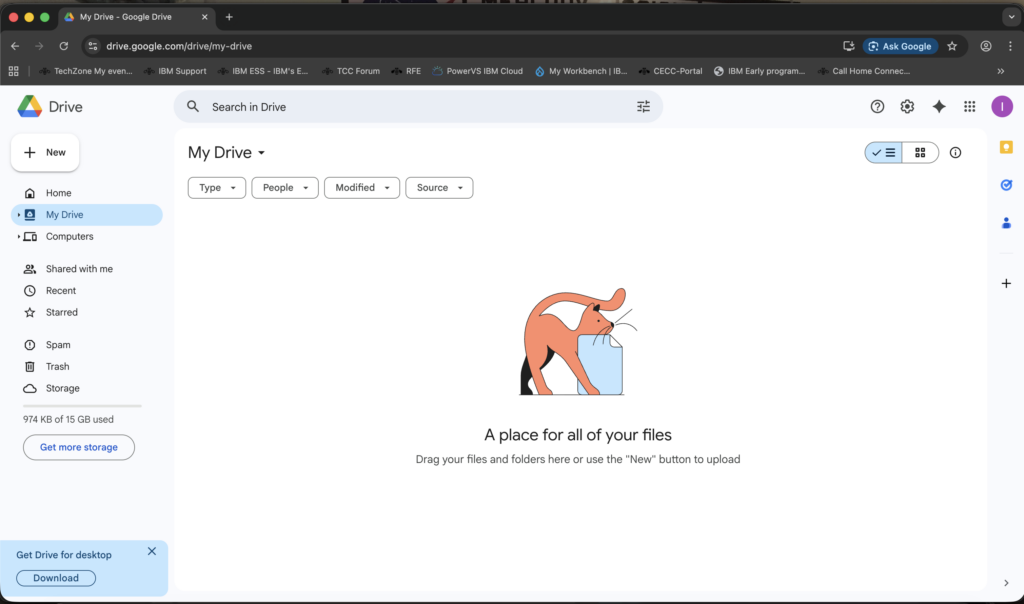
With the AIX Rclone configuration now completed successfully we can backup file-level data to the Google Drive.
Backing up AIX data to the cloud
To backup data (files) to the cloud using Rclone use the rclone sync or copy commands. The main difference between sync and copy with rclone is that copy adds and updates files without deleting anything on the destination, while sync makes the destination exactly match the source, including removing files that no longer exist in the source.
To backup (sync) the user’s home directory to Google Drive, first the user ibmaixtrain runs rclone –verbose sync /home/ibmaixtrain google_drive:ibmaixtrain –dry-run. The –dry-run flag makes Rclone simulate an operation without changing any files, showing what would be copied, updated, or deleted. It’s a safe way to verify commands before actually running them.
ibmaixtrain@cgaix /home/ibmaixtrain $ rclone --verbose sync /home/ibmaixtrain google_drive:ibmaixtrain --dry-run
2026/01/27 12:11:27 NOTICE: .profile: Skipped copy as --dry-run is set (size 300)
2026/01/27 12:11:27 NOTICE: .sh_history: Skipped copy as --dry-run is set (size 452)
2026/01/27 12:11:27 NOTICE: .config/rclone/rclone.conf: Skipped copy as --dry-run is set (size 541)
2026/01/27 12:11:27 NOTICE: .vi_history: Skipped copy as --dry-run is set (size 22)
2026/01/27 12:11:27 NOTICE: .config/rclone: Skipped set directory modification time as --dry-run is set
2026/01/27 12:11:27 NOTICE: .config: Skipped set directory modification time as --dry-run is set
2026/01/27 12:11:27 NOTICE:
Transferred:        1.284 KiB / 1.284 KiB, 100%, 0 B/s, ETA -
Checks:                 0 / 0, -, Listed 6
Transferred:            4 / 4, 100%
Elapsed time:         0.3s
Now the user can perform the actual backup. The command is identical, minus the –dry-run flag.
ibmaixtrain@cgaix /home $ rclone --verbose sync /home/ibmaixtrain google_drive:ibmaixtrain
2026/01/27 15:09:32 INFO  : .profile: Copied (new)
2026/01/27 15:09:35 INFO  : .sh_history: Copied (new)
2026/01/27 15:09:35 INFO  : .vi_history: Copied (new)
2026/01/27 15:09:35 INFO  : .config/rclone/rclone.conf: Copied (new)
2026/01/27 15:09:36 INFO  : .config/rclone: Set directory modification time (using DirSetModTime)
2026/01/27 15:09:37 INFO  : .config: Set directory modification time (using DirSetModTime)
2026/01/27 15:09:37 INFO  :
Transferred:        1.949 KiB / 1.949 KiB, 100%, 285 B/s, ETA 0s
Checks:                 0 / 0, -, Listed 6
Transferred:            4 / 4, 100%
Elapsed time:         9.5s
After the backup (sync) is finished, the command rclone lsd google_drive: can be used to list the contents of the Google Drive.
ibmaixtrain@cgaix /home $ rclone lsd google_drive:
           0 2026-01-27 15:09:29        -1 ibmaixtrain
To perform a long listing of all the files that were backed up (sync’ed) in the user’s home directory we use, rclone lsl google_drive:.
ibmaixtrain@cgaix /home $ rclone lsl google_drive:
     1090 2026-01-27 15:09:26.085000000 ibmaixtrain/.sh_history
       26 2026-01-27 14:51:39.823000000 ibmaixtrain/.vi_history
      338 2026-01-27 14:50:05.001000000 ibmaixtrain/.profile
      542 2026-01-27 14:51:39.823000000 ibmaixtrain/.config/rclone/rclone.conf
Viewing the Google Drive from a web browser now shows that data has been backed up to the cloud drive.

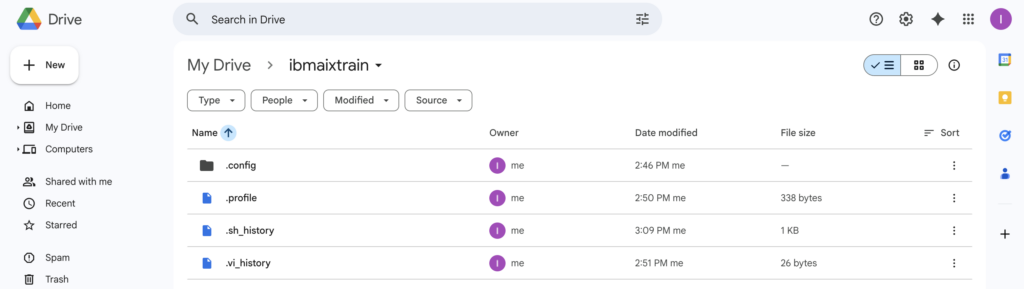
Great! Now we can backup files from our AIX host to Google Drive. So, how do we restore a file?
Restoring AIX data from the cloud
If the user ibmaixtrain were to accidentally delete one of their files they can use rclone to restore a file (or files). Here the user has created a new file in their home directory named myfile. They perform another backup (sync) of their home directory now.
ibmaixtrain@cgaix /home/ibmaixtrain $ ls -ltr
total 8
-rw-r--r--    1 ibmaixtr staff          1998 Jan 27 15:17 myfile
ibmaixtrain@cgaix /home $ rclone --verbose sync /home/ibmaixtrain google_drive:ibmaixtrain
2026/01/27 15:19:38 INFO  : .sh_history: Copied (replaced existing)
2026/01/27 15:19:38 INFO  : myfile: Copied (new)
2026/01/27 15:19:38 INFO  :
Transferred:        3.559 KiB / 3.559 KiB, 100%, 1.778 KiB/s, ETA 0s
Checks:                 4 / 4, 100%, Listed 13
Transferred:            2 / 2, 100%
Elapsed time:         2.9s
Then the user removes the file, myfile.
ibmaixtrain@cgaix /home/ibmaixtrain $ rm myfile
ibmaixtrain@cgaix /home/ibmaixtrain $ ls -ltr
total 0
Later they choose to restore the deleted file from Google Drive. To recover the now deleted file myfile from Google Drive, they can use rclone copy google_drive:ibmaixtrain/myfile .; the file is restored (copied) to the user’s current directory (.).
ibmaixtrain@cgaix /home/ibmaixtrain $ rclone copy
google_drive:ibmaixtrain/myfile .

ibmaixtrain@cgaix /home/ibmaixtrain $ ls -ltr
total 8
-rw-r--r--    1 ibmaixtr staff          1998 Jan 27 15:22 myfile
Be careful!
The copy option is safe and additive, only transferring new or changed files, while sync will delete files on the destination that don’t exist on the source. Using sync without double-checking (for example with –dry-run) can accidentally erase important data, so it should be treated like a “destructive mirror” tool, whereas copy is perhaps a safer backup option.
As an example of this, if the user were to create a file in their home directory named newfile, take a backup with rclone sync, remove newfile, then perform another backup with rclone sync.; if they then try to recover the file from Google Drive it will fail because rclone sync discovered newfile had been removed from the source, so it removed it from the Google Drive backup as well, to keep the two directories synchronised (as designed).
ibmaixtrain@cgaix /home/ibmaixtrain $ rclone --verbose sync /home/ibmaixtrain google_drive:ibmaixtrain
2026/01/28 10:59:43 INFO  : newfile: Copied (new)
2026/01/28 10:59:44 INFO  : .sh_history: Copied (replaced existing)
2026/01/28 10:59:44 INFO  :
Transferred:        5.729 KiB / 5.729 KiB, 100%, 1.432 KiB/s, ETA 0s
Checks:                 5 / 5, 100%, Listed 15
Transferred:            2 / 2, 100%
Elapsed time:         4.7s
ibmaixtrain@cgaix /home/ibmaixtrain $ rm newfile
ibmaixtrain@cgaix /home/ibmaixtrain $ rclone --verbose sync /home/ibmaixtrain google_drive:ibmaixtrain
2026/01/28 11:00:52 INFO  : .sh_history: Copied (replaced existing)
2026/01/28 11:00:52 INFO  : newfile: Deleted
2026/01/28 11:00:52 INFO  :
Transferred:        3.854 KiB / 3.854 KiB, 100%, 1.926 KiB/s, ETA 0s
Checks:                 6 / 6, 100%, Listed 15
Deleted:                1 (files), 0 (dirs), 1.951 KiB (freed)
Transferred:            1 / 1, 100%
Elapsed time:         3.4s
ibmaixtrain@cgaix /home/ibmaixtrain $ rclone copy google_drive:ibmaixtrain/newfile .
2026/01/28 11:01:35 ERROR : Google drive root 'ibmaixtrain/newfile': error reading source root directory: directory not found
2026/01/28 11:01:35 ERROR : Attempt 1/3 failed with 1 errors and: directory not found
2026/01/28 11:01:36 ERROR : Google drive root 'ibmaixtrain/newfile': error reading source root directory: directory not found
2026/01/28 11:01:36 ERROR : Attempt 2/3 failed with 1 errors and: directory not found
2026/01/28 11:01:36 ERROR : Google drive root 'ibmaixtrain/newfile': error reading source root directory: directory not found
2026/01/28 11:01:36 ERROR : Attempt 3/3 failed with 1 errors and: directory not found
2026/01/28 11:01:36 NOTICE: Failed to copy: directory not found
Using the copy directive will prevent this from happening (if that is your desired behaviour). In the example below instead of using sync we use copy. After the first backup is completed, we accidentally delete newfile. We are then able to successfully restore the deleted file from Google Drive.
ibmaixtrain@cgaix /home/ibmaixtrain $ ls -ltr
total 8
-rw-r--r--    1 ibmaixtr staff          1998 Jan 27 15:35 newfile
ibmaixtrain@cgaix /home/ibmaixtrain $ rclone --verbose copy /home/ibmaixtrain google_drive:ibmaixtrain
2026/01/28 11:02:41 INFO  : .sh_history: Copied (replaced existing)
2026/01/28 11:02:41 INFO  : newfile: Copied (new)
2026/01/28 11:02:41 INFO  :
Transferred:        5.951 KiB / 5.951 KiB, 100%, 1.983 KiB/s, ETA 0s
Checks:                 5 / 5, 100%, Listed 15
Transferred:            2 / 2, 100%
Elapsed time:         3.0s
ibmaixtrain@cgaix /home/ibmaixtrain $ rm newfile
ibmaixtrain@cgaix /home/ibmaixtrain $ rclone --verbose copy /home/ibmaixtrain google_drive:ibmaixtrain
2026/01/28 11:03:31 INFO  : .sh_history: Copied (replaced existing)
2026/01/28 11:03:31 INFO  :
Transferred:        4.082 KiB / 4.082 KiB, 100%, 2.040 KiB/s, ETA 0s
Checks:                 5 / 5, 100%, Listed 15
Transferred:            1 / 1, 100%
Elapsed time:         2.8s
ibmaixtrain@cgaix /home/ibmaixtrain $ rclone --verbose copy google_drive:ibmaixtrain/newfile .
2026/01/28 11:04:01 INFO  : newfile: Copied (new)
2026/01/28 11:04:01 INFO  :
Transferred:        1.951 KiB / 1.951 KiB, 100%, 0 B/s, ETA -
Transferred:            1 / 1, 100%
Elapsed time:         0.7s
ibmaixtrain@cgaix /home/ibmaixtrain $ ls -tlr newfile
-rw-r--r--    1 ibmaixtr staff          1998 Jan 28 11:02 newfile
If the user wants to restore a directory and all the files in the directory they can use rclone by specifying the name of the directory to restore and the destination. For example if the user wanted to recover a directory named /home/ibmaixtrain/mydata they could use rclone copy google_drive:ibmaixtrain/mydata /home/ibmaixtrain/mydata. This will restore the mydata directory to /home/ibmaixtrain and then restore all the files underneath.
ibmaixtrain@cgaix /home/ibmaixtrain $ rclone copy --verbose google_drive:ibmaixtrain/mydata /home/ibmaixtrain/mydata
2026/01/28 11:39:13 INFO  : data1: Copied (new)
2026/01/28 11:39:13 INFO  : data2: Copied (new)
2026/01/28 11:39:13 INFO  :
Transferred:        3.902 KiB / 3.902 KiB, 100%, 0 B/s, ETA -
Checks:                 0 / 0, -, Listed 2
Transferred:            2 / 2, 100%
Elapsed time:         1.3s
ibmaixtrain@cgaix /home/ibmaixtrain $ ls -ltr
total 16
-rw-r--r--    1 ibmaixtr staff          1998 Jan 27 15:35 myfile
-rw-r--r--    1 ibmaixtr staff          1998 Jan 28 11:02 newfile
drwxr-xr-x    2 ibmaixtr staff           256 Jan 28 11:39 mydata
ibmaixtrain@cgaix /home/ibmaixtrain $ ls -ltr mydata/
total 16
-rw-r--r--    1 ibmaixtr staff          1998 Jan 28 11:29 data1
-rw-r--r--    1 ibmaixtr staff          1998 Jan 28 11:29 data2
Box it up!
In our testing we also had success configuring Rclone to use the Box cloud storage service, https://www.box.com. In the rclone listremotes , rclone config show and rclone lsd box: examples below we have both Box and Google Drive configured, so we can copy/sync/restore data to/from either or both depending on our needs.
cg@cgaix / $ rclone listremotes
box:
google_drive:
cg@cgaix / $ rclone config show
[box]
type = box
client_id =
client_secret =
token =
{"access_token":"Y9Sm3lE3bAHeOV6U7iMvXH0t0rKoa2aP","token_type":"bearer","refresh_token":"mpPwsV83T0OnBPy3xe79O3GNbktVrfx59Co2N4vCjRaIdr3Ya0VJmsFUDFShmIDN","expiry":"2026-01-23T16:25:06.129634+11:00","expires_in":4045}
[google_drive]
type = drive
client_id = 1072519309390-8k02v0sphdamjvcndd8t606j7isnc7nc.apps.googleusercontent.com
client_secret = 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
scope = drive
token = {"access_token":"ya29.a0AUMWg_PTnC9cKFlCZ1LfbIwOIzSTcPgNn6GvBvmVIpxT1MFPcMU_NaJ51Dvrkyo-hwTDVPI
zpXqdKY7Hvivn1ere5_jVSevBPk1UTH0VUoI8Bp3K5X7DKiVeXeAApUHxjqVBmmLHJt
NsCtjjTaO5HaveN_8qlVq0PcVcavSyFxWJk9ChQGz4pJw_KPPvsKKz9IE9
GQAaCgYKAUsSARMSFQHGX2MihoH8AwfkIrZ5D781u_n_Zg0209","token_type":"Bearer","refresh_token":"1//0gF2Y2f_nfo3OCgYIARAAGBASNwF
L9IrMZtfl0BEaHOzRIAuhoXUemcTKp4hMUahDIm0umvQMyCeFJMC-0zAXRqeunh4OaVaIg0","expiry":"2026-01-27T11:10:28.90501+11:00","expires_in":3599}
cg@cgaix $ rclone lsd box:
           -1 2026-01-27 15:07:29       -1 ibmaixtrain
cg@cgaix $ rclone lsd google_drive:
           0 2026-01-27 15:09:29        -1 ibmaixtrain
Refer to the official Rclone documentation for configuration steps, https://rclone.org/box/ (they are not that dissimilar from the Google Drive setup steps).
Conclusion
Rclone makes AIX file-level backups to the cloud simple and reliable. Whether using Google Cloud or other supported storage, it lets AIX cloud administrators securely copy and sync files without complex tools. Lightweight and flexible, Rclone offers a practical way to protect data and keep it recoverable.
References
Configuring rclone on a remote / headless machine
Integrate remote cloud storage – Easy Access. Article from ADMIN 83/2024
IBM Power Virtual Server Cloud
Open Source Software on IBM AIX (AN35DG, IBM Training)
Managing FOSS applications on AIX. Tools at the Ready!